
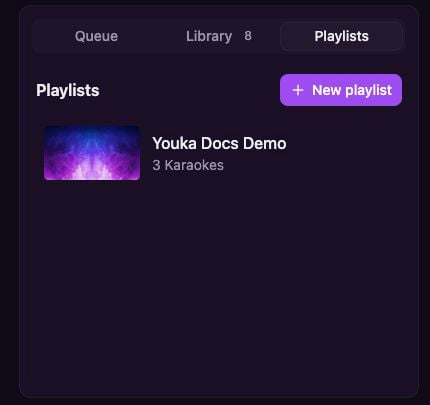
Open the Playlists tab in Library to see your saved sets.
Create a playlist
1
Open Library
Open Library, then select the Playlists tab.
2
Create the playlist
Select New playlist, enter a name, and save it.
3
Add Karaokes
Return to the Library tab, open a Karaoke’s actions menu, and select Add to playlist.
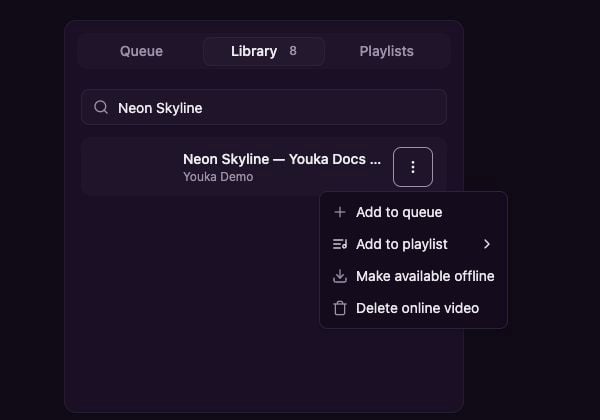
Use a Library item's actions menu to add it to an existing playlist or create a new one.
Play and reorder a playlist
Open Library → Playlists, then select a playlist.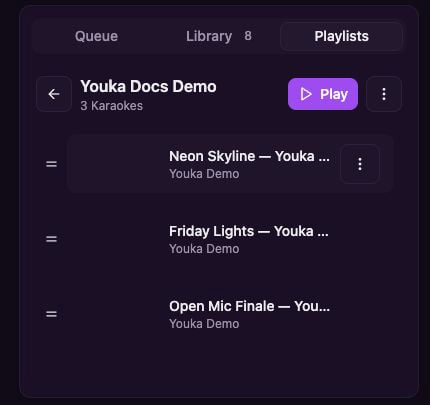
Open a playlist to play it, reorder its Karaokes, or manage individual entries.
- Select Play to replace the current Queue and start from the first Karaoke.
- Drag the handle beside a Karaoke to change its position.
- Open a Karaoke’s actions menu to remove that occurrence from the playlist.
- Open the playlist actions menu to rename or delete the playlist.
Playlists and the Queue
A playlist is a saved set you can use again. The Queue is the temporary play order for the current session. Starting a playlist replaces the current Queue with that playlist’s Karaokes.Saved playlists require an internet connection. To prepare for an offline event, make the finished videos available offline before disconnecting, then build and use the Queue on that device. See Use Youka offline.