
Before you go offline
- Open Youka Desktop or the Youka extension while you have an internet connection.
- Sign in and open Library once. This prepares the offline page for the current version of Youka.
- Choose how much to save:
- For one video, open its menu and select Make available offline.
- For the eligible videos in your Library, select Manage → Make available offline.
- To prepare future eligible Karaokes automatically, select Manage → Settings and enable Keep new Karaokes available offline.
- Keep Youka open until the selected videos say Available offline, then test the Library before disconnecting.
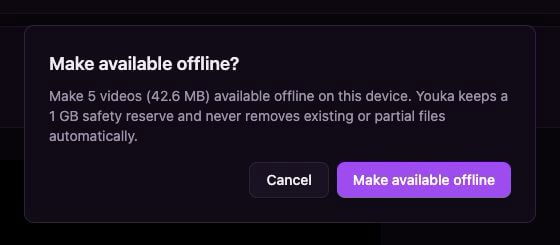
Youka shows the required storage before preparing the eligible Library for offline use.
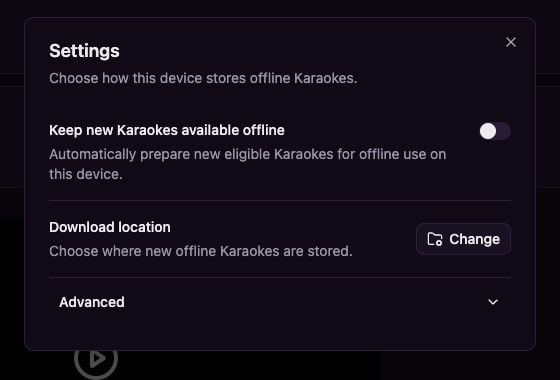
Enable automatic offline saving for new eligible Karaokes from Library settings.
Choose where new exports are stored
Select Manage → Settings → Change to choose a Youka folder. New local exports and offline copies are stored by Project and Export ID inside that folder. Existing exports are not moved. New installations use the operating system’s Videos folder:Movies/Youka on macOS and Videos/Youka on Windows and Linux. An existing Videos/Youka Library stays in place. The local index makes Library loading fast; each Export also has its own manifest so Youka can rebuild the index without scanning video metadata.
Use Add existing Youka folder if you previously selected another drive or folder. Youka indexes only valid managed Export folders and does not import unrelated videos.