
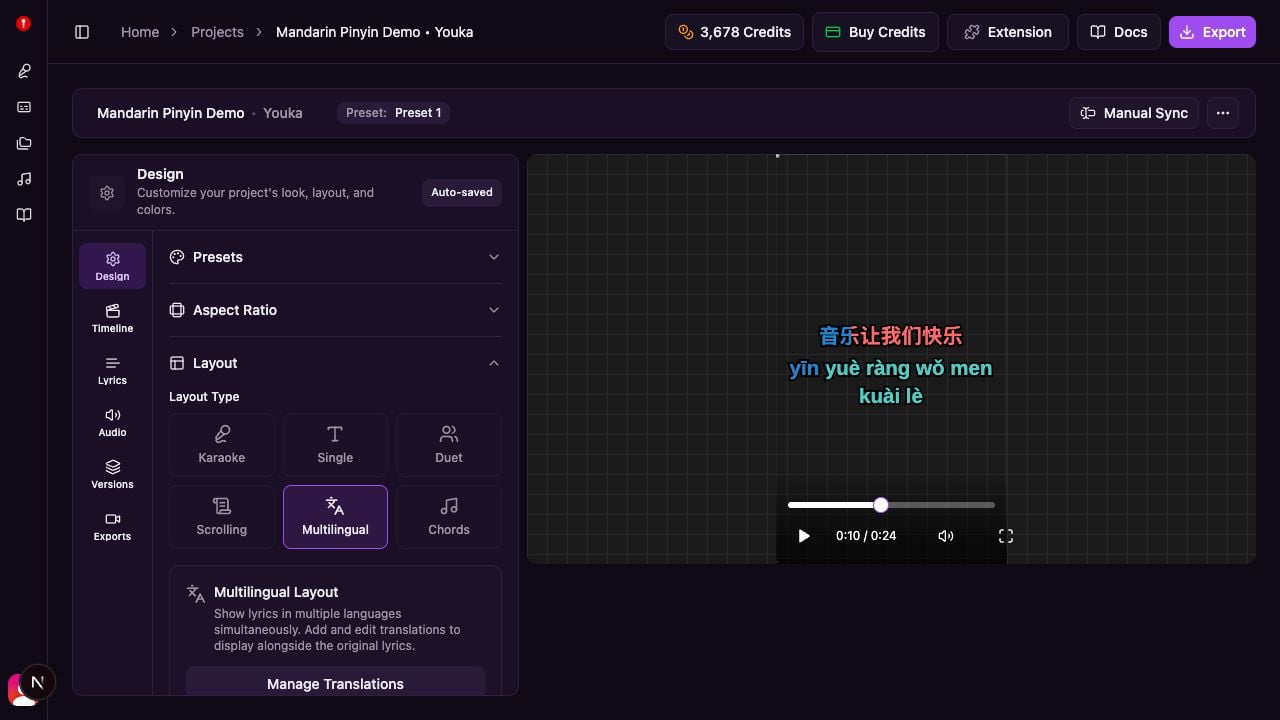
What Is Multilingual Layout?
Multilingual layout lets you:- Show lyrics in multiple languages simultaneously
- Stack languages vertically (original at top, translations below)
- Customize text styling for each language independently
- Control which languages to display and their order
- Adjust spacing and opacity for optimal readability
Getting Started
Before using multilingual layout, you need synced lyrics in your project.- Open your project in the Studio
- Go to the Layout panel
- Change Layout Type to Multilingual
Adding Translations
Opening the Translation Editor
- In the Layout panel under Multilingual Settings, click Manage Translations
- The translation editor opens with your original lyrics

Method 1: AI Translation (Instant)
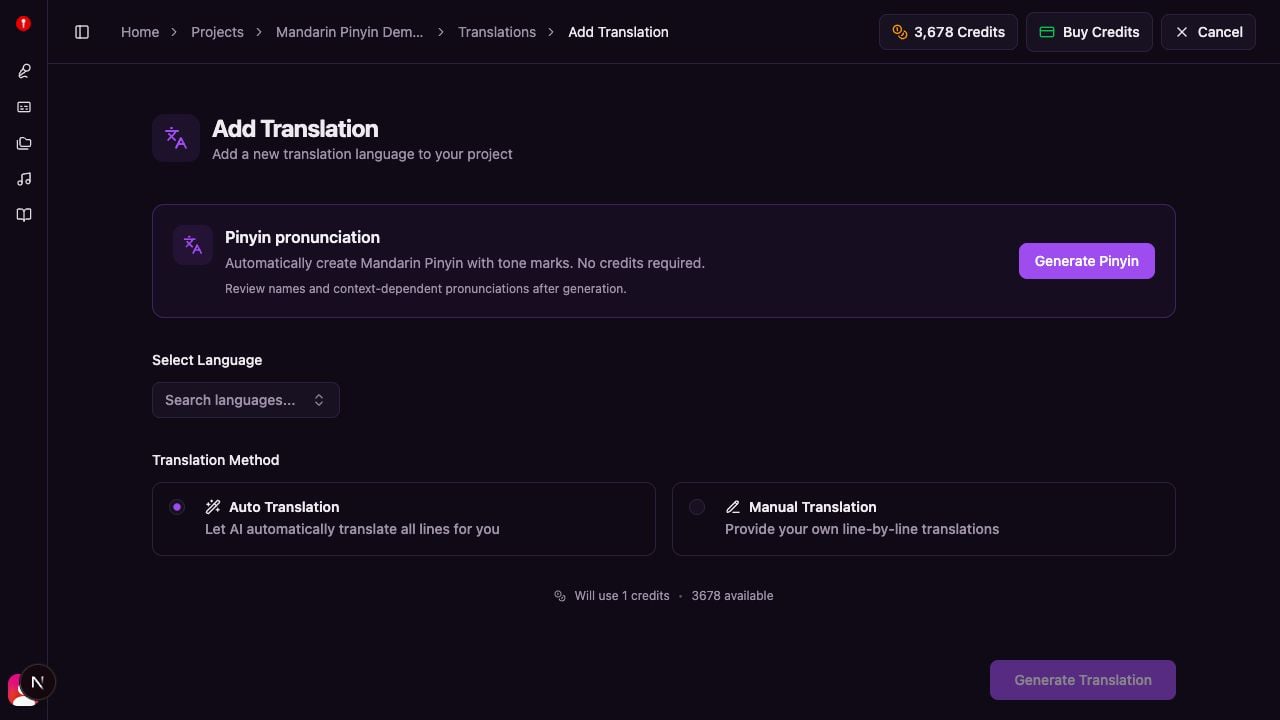
The fastest way to add translations:- Click Add Translation in the header
- Select your target language from the list
- Choose Translate with AI
- Review the credit cost and click Generate
- Wait a few seconds for translation to complete
Method 2: Manual Translation (Free)
For more control or to save credits:- Click Add Translation in the header
- Select your target language
- Choose Manual Translation
- Paste your translated lyrics (one line per original line)
- Verify the line count matches (shown in green when correct)
- Click Save
- Use tools like Google Translate to prepare your translations
- Copy all translated lines at once and paste them
- Make sure you have exactly the same number of lines as the original
- You can edit translations line-by-line after saving
Add Pinyin Pronunciation (Simplified Chinese)
For a Simplified Chinese project, Youka can automatically add tone-marked Mandarin Pinyin beneath the original lyrics: Pinyin is a pronunciation/transliteration track, not a translation; it represents Standard Mandarin readings of the Chinese lyrics.- In the Layout panel, set Layout Type to Multilingual
- Under Multilingual Settings, click Manage Translations
- Click Add Translation
- Find the Pinyin pronunciation card
- Click Generate Pinyin
Managing Languages
Once you have translations, you can control which languages appear and in what order.Show or Hide Languages
In the Layout panel under Multilingual Settings:- Find the language you want to show/hide
- Check or uncheck the box next to it
- Unchecked languages won’t appear in your video
Reorder Languages
Languages appear in your video from top to bottom based on their order:- Find the grip handle (⋮⋮) next to each language
- Click and drag the language up or down
- The number shows the position (1 = top, 2 = second, etc.)
Remove Languages
To permanently delete a translation:- In the Layout panel, find the language
- Click the delete icon
- Confirm the deletion
Customizing Appearance
Text Styling Per Language
Each language can have its own visual style:- Go to the Text Style panel
- Select the language from the tabs at the top
- Customize:
- Font family and size
- Text color (for unsung lyrics)
- Effect color (for sung/active lyrics)
- Outline color and thickness
- Letter spacing and text case

Language Spacing
Control the vertical gap between language lines:- In the Layout panel, find Language Spacing
- Adjust the slider (0-10)
- Higher values = more space between languages
Translation Opacity
Make translation languages less prominent than the primary language:- In the Layout panel, find Translation Opacity
- Adjust the slider (0-100%)
- The first language always stays at 100% opacity
- Other languages use the opacity you set
Lines Per Screen and Alignment
These settings affect all languages together:- Lines Per Screen — How many lyric lines show at once (default: 2)
- Alignment — Left, center, or right (default: center)
- Padding — Space around the lyrics area
Text Effects
All languages share the same text effect. Choose from:None
Static text with no animation. Best for:- Simple subtitle-style presentations
- When you want minimal distraction
Karaoke
Text fills progressively as the word is sung. Best for:- Traditional karaoke experience
- When timing is important
Highlight
Full line changes color when active. Best for:- Scrolling or multi-line displays
- When readability is priority
Tips and Best Practices
Language Ordering
- Put the most familiar language first (usually the original language)
- Place the target audience’s language second
- Less common languages can go further down
Font Selection
- Use native fonts for each language when possible
- For Arabic/Hebrew, choose fonts that support right-to-left text
- For Chinese/Japanese/Korean, use CJK-compatible fonts
- Test readability in the preview before exporting
Spacing and Readability
- Increase language spacing if text overlaps (especially with larger fonts)
- Reduce translation opacity if the screen feels too crowded
- Consider showing only 2-3 languages at once for best readability
Color Choices
- Use high contrast between text and background
- Make sure effect colors stand out clearly
- Keep colors consistent with your branding
Right-to-Left Languages
For Arabic and Hebrew:- Style the language in the Text Style panel
- Set Text Direction to RTL (right-to-left)
- The text will flow from right to left automatically
Troubleshooting
”Line count mismatch” error
This appears when manual translations don’t have the same number of lines as the original. Solution:- Count the lines in your original lyrics
- Make sure your translation has exactly that many lines
- Add or remove line breaks to match
Translation not showing in video
Check:- Is the language checked in the Layout panel?
- Is the translation opacity set too low (below 10%)?
- Is the language hidden behind another element?
Text overlapping between languages
Solutions:- Increase the Language Spacing slider
- Reduce the Font Size for one or more languages
- Show fewer languages at once
Translation looks blurry or dim
Solutions:- Increase Translation Opacity to 80-100%
- Check that effect color has good contrast
- Verify font rendering in preview mode
Related Features
Learn more about customizing your karaoke:- Customize Text Style — Full guide to text styling options
- Layout Options — Overview of all layout modes
- Using Studio — Complete studio editor guide