> ## Documentation Index
> Fetch the complete documentation index at: https://docs.youka.io/llms.txt
> Use this file to discover all available pages before exploring further.
# Create Karaoke from a URL
> Install the Youka Extension, download a song from a public URL, and create a karaoke project in Youka Online
Turn a public video or music URL into a karaoke project in Youka Online. This guide shows every screen from downloading the Youka Extension to opening the completed project.
## Before You Start
You need:
* a Windows 64-bit, macOS, or Ubuntu computer
* a supported desktop browser
* a public video or music URL that you have permission to use
* enough Youka credits to create the project
URL creation is available on computers. On a phone or tablet, download the media file first and use the regular file upload flow.
## 1. Download the Youka Extension
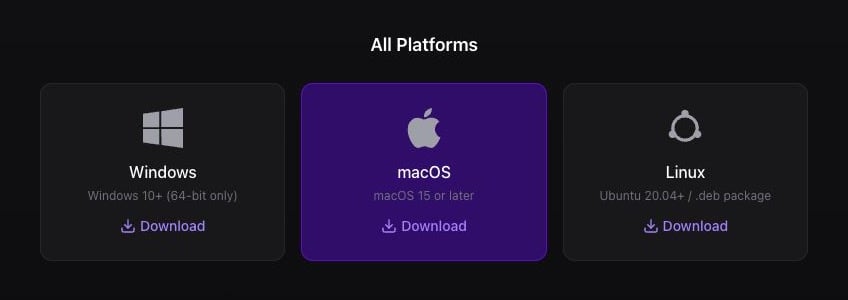
1. Open the [Youka Extension download page](https://www.youka.io/extension).
2. Select **Windows**, **macOS**, or **Linux**.
3. Wait for the installer to finish downloading.
 ## 2. Install and Open the Extension
1. Open the downloaded `.dmg` file.
2. Drag **Youka Extension** into **Applications**.
3. Open **Applications**, then open **Youka Extension**.
1. Open the downloaded `.exe` file.
2. Follow the installer until Youka Extension opens.
3. Keep the extension running from the Windows system tray.
1. Open the downloaded `.deb` package with your software installer.
2. Select **Install**.
3. Open **Youka Extension** from your applications menu.
You can also install it from a terminal:
```bash theme={null}
sudo apt install ./youka-ext-linux-x64-0.0.1.deb
```
## 3. Wait for the Extension to Be Ready
The extension opens Youka Online in your browser. Sign in if asked.
Chrome may ask whether Youka Online can find and connect to devices on your local network. Select **Allow**. Youka uses this permission to connect to the Youka Extension running on your computer.
The first launch downloads required components. Keep **Youka Extension** open and wait on this page. The percentage and component name update while setup continues.
## 2. Install and Open the Extension
1. Open the downloaded `.dmg` file.
2. Drag **Youka Extension** into **Applications**.
3. Open **Applications**, then open **Youka Extension**.
1. Open the downloaded `.exe` file.
2. Follow the installer until Youka Extension opens.
3. Keep the extension running from the Windows system tray.
1. Open the downloaded `.deb` package with your software installer.
2. Select **Install**.
3. Open **Youka Extension** from your applications menu.
You can also install it from a terminal:
```bash theme={null}
sudo apt install ./youka-ext-linux-x64-0.0.1.deb
```
## 3. Wait for the Extension to Be Ready
The extension opens Youka Online in your browser. Sign in if asked.
Chrome may ask whether Youka Online can find and connect to devices on your local network. Select **Allow**. Youka uses this permission to connect to the Youka Extension running on your computer.
The first launch downloads required components. Keep **Youka Extension** open and wait on this page. The percentage and component name update while setup continues.
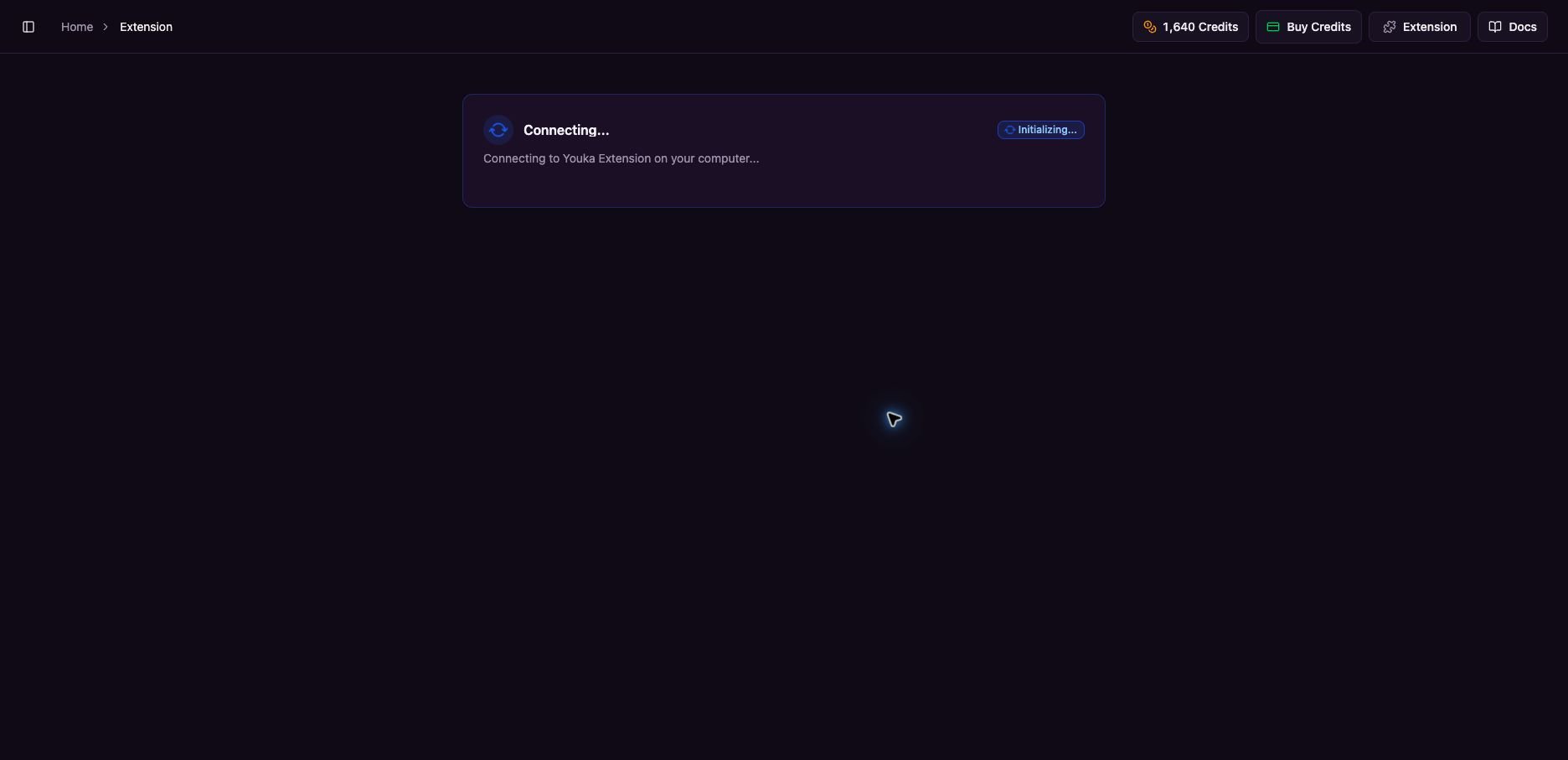 Setup is finished when the browser status page says **Extension ready**. Keep **Youka Extension** open.
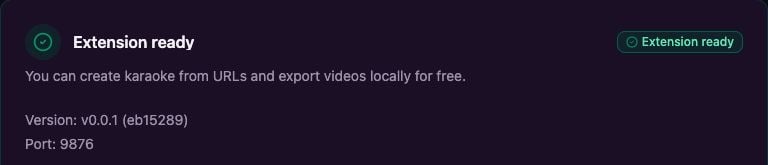 If the page stays on Connecting, make sure Youka Extension is still open, confirm that your browser allows local network access for Youka Online, then refresh the page. You can also select **Extension** in the top-right corner and choose **Check Connection**.
## 4. Open Create Karaoke from URL
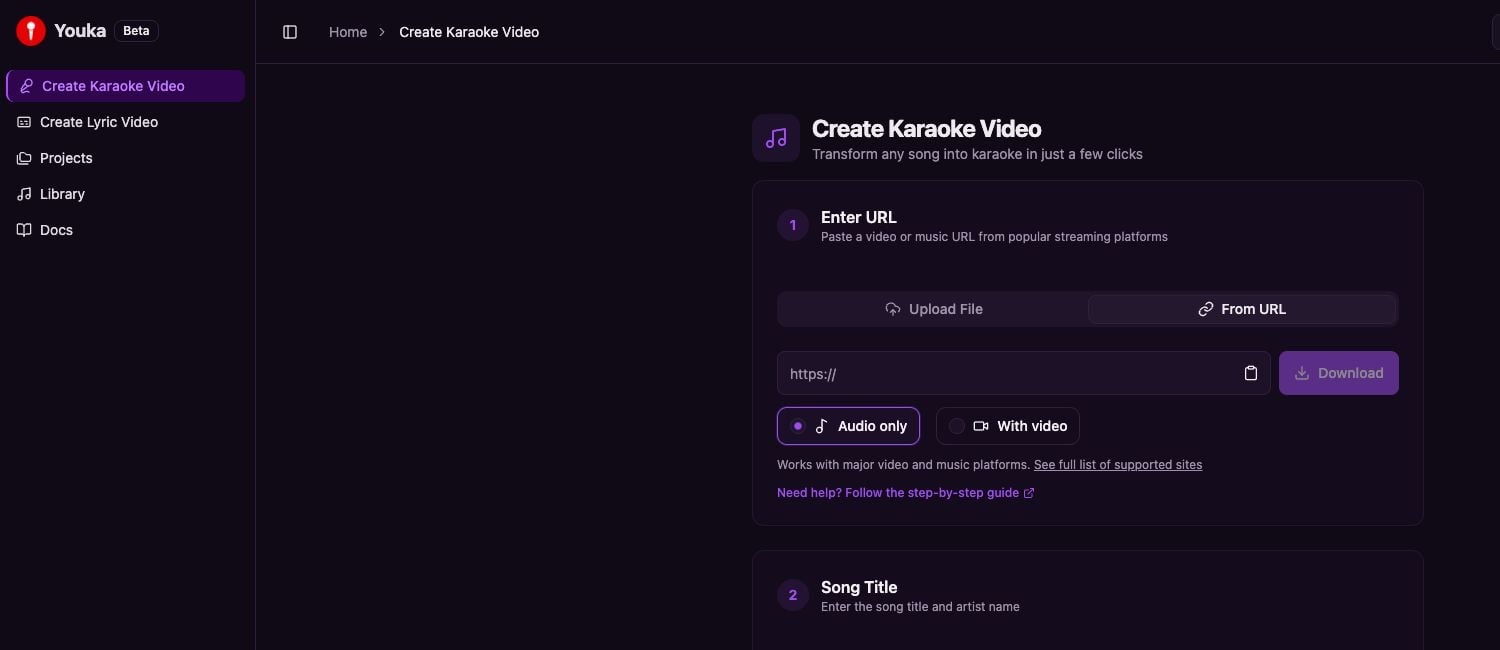
1. Return to Youka Online.
2. Select **Create Karaoke Video** in the left sidebar.
3. Select **From URL**.
If the page stays on Connecting, make sure Youka Extension is still open, confirm that your browser allows local network access for Youka Online, then refresh the page. You can also select **Extension** in the top-right corner and choose **Check Connection**.
## 4. Open Create Karaoke from URL
1. Return to Youka Online.
2. Select **Create Karaoke Video** in the left sidebar.
3. Select **From URL**.
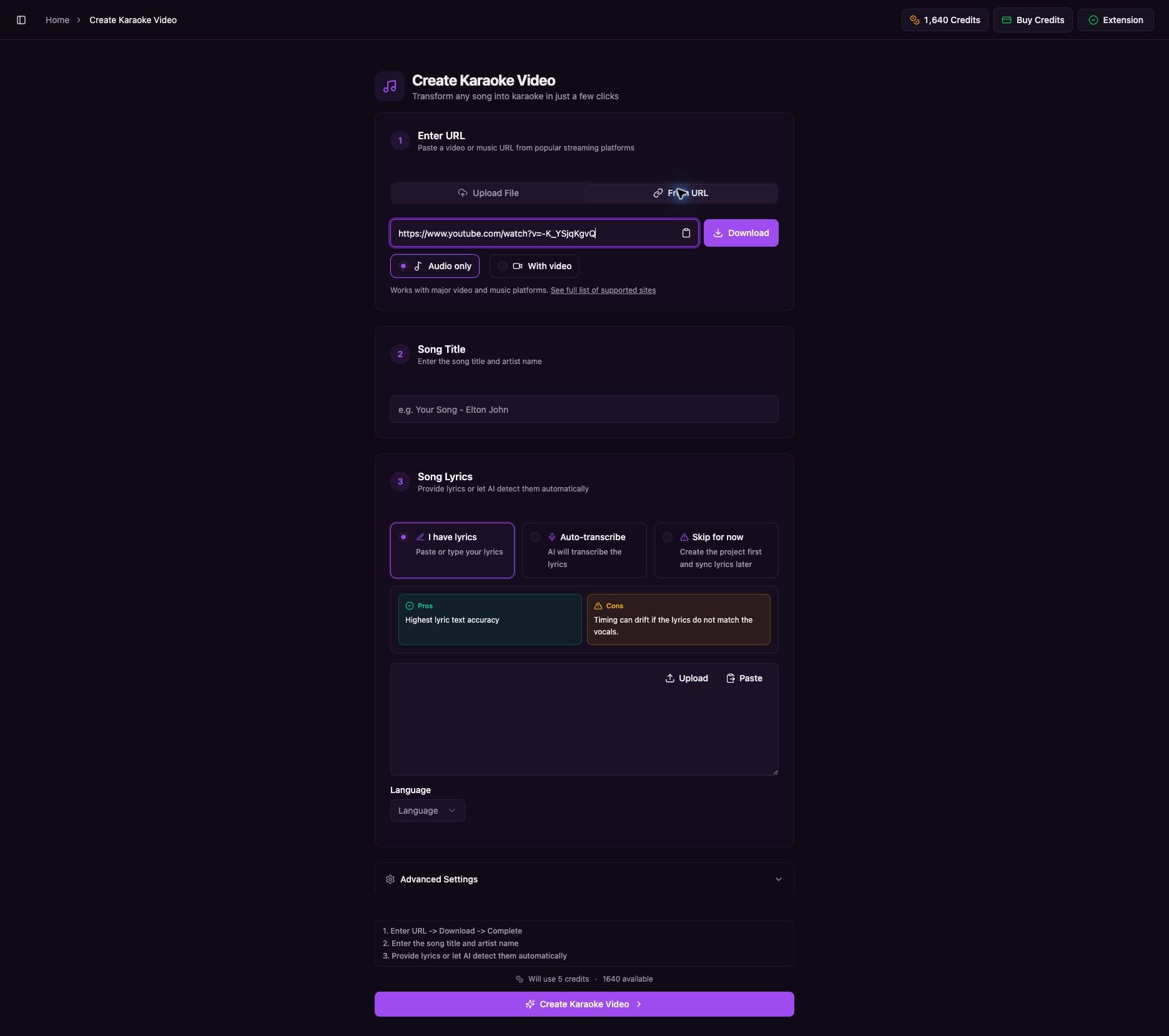
 ## 5. Paste the URL
1. Paste your public video or music URL into the **https\://** field.
2. Choose **Audio only** for a standard karaoke project. Choose **With video** only when you also need the source video.
3. Select **Download**.
## 5. Paste the URL
1. Paste your public video or music URL into the **https\://** field.
2. Choose **Audio only** for a standard karaoke project. Choose **With video** only when you also need the source video.
3. Select **Download**.
 ## 6. Wait for the Download to Finish
Keep the page open while Youka downloads the source and prepares the media. The message changes as each stage finishes.
## 6. Wait for the Download to Finish
Keep the page open while Youka downloads the source and prepares the media. The message changes as each stage finishes.
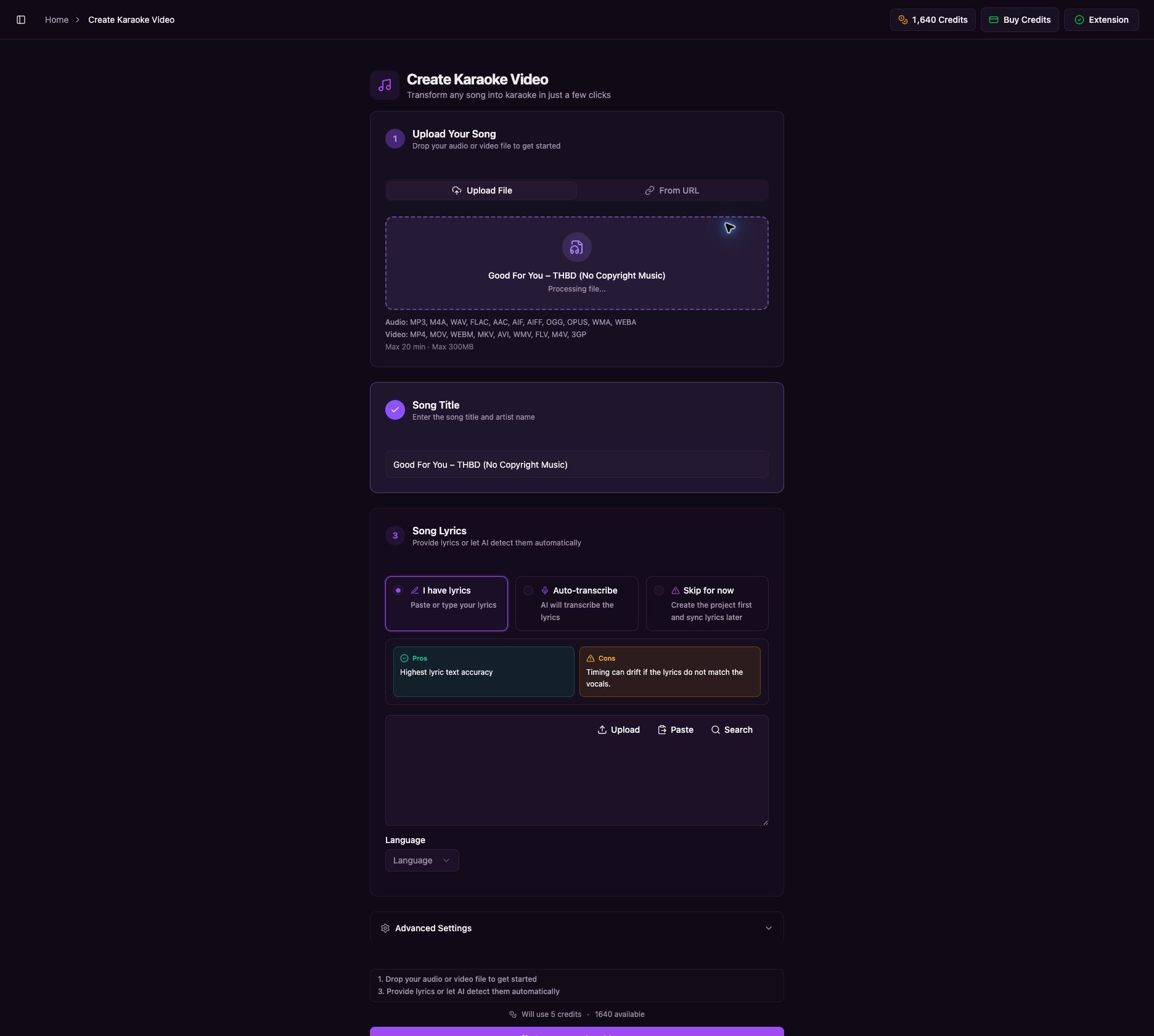 The download is ready when Youka shows the downloaded media name and fills **Song Title**. **Processing file...** may appear briefly while the file is prepared; wait until the final **Create Karaoke Video** button is available.
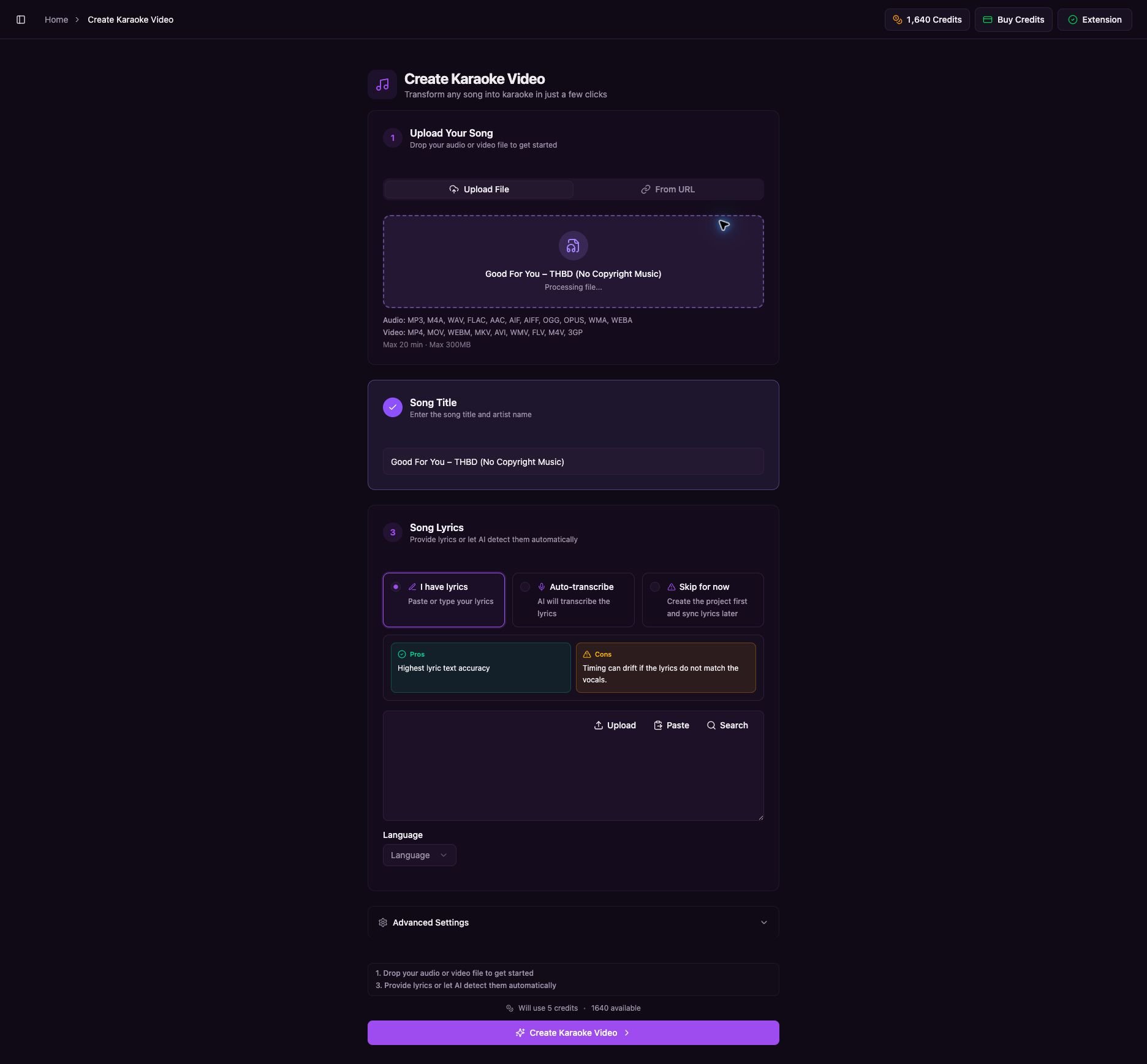 ## 7. Choose Lyrics and Create the Karaoke
1. Check the **Song Title** and edit it if needed.
2. Choose one lyrics option:
* **I have lyrics** — paste lyrics that match this exact version.
* **Auto-transcribe** — let Youka detect the lyrics from the audio.
* **Skip for now** — create the project and add lyrics later.
3. Select the lyrics language when that option appears.
4. Review the credit amount shown above the final button.
5. Select **Create Karaoke Video**.
## 7. Choose Lyrics and Create the Karaoke
1. Check the **Song Title** and edit it if needed.
2. Choose one lyrics option:
* **I have lyrics** — paste lyrics that match this exact version.
* **Auto-transcribe** — let Youka detect the lyrics from the audio.
* **Skip for now** — create the project and add lyrics later.
3. Select the lyrics language when that option appears.
4. Review the credit amount shown above the final button.
5. Select **Create Karaoke Video**.
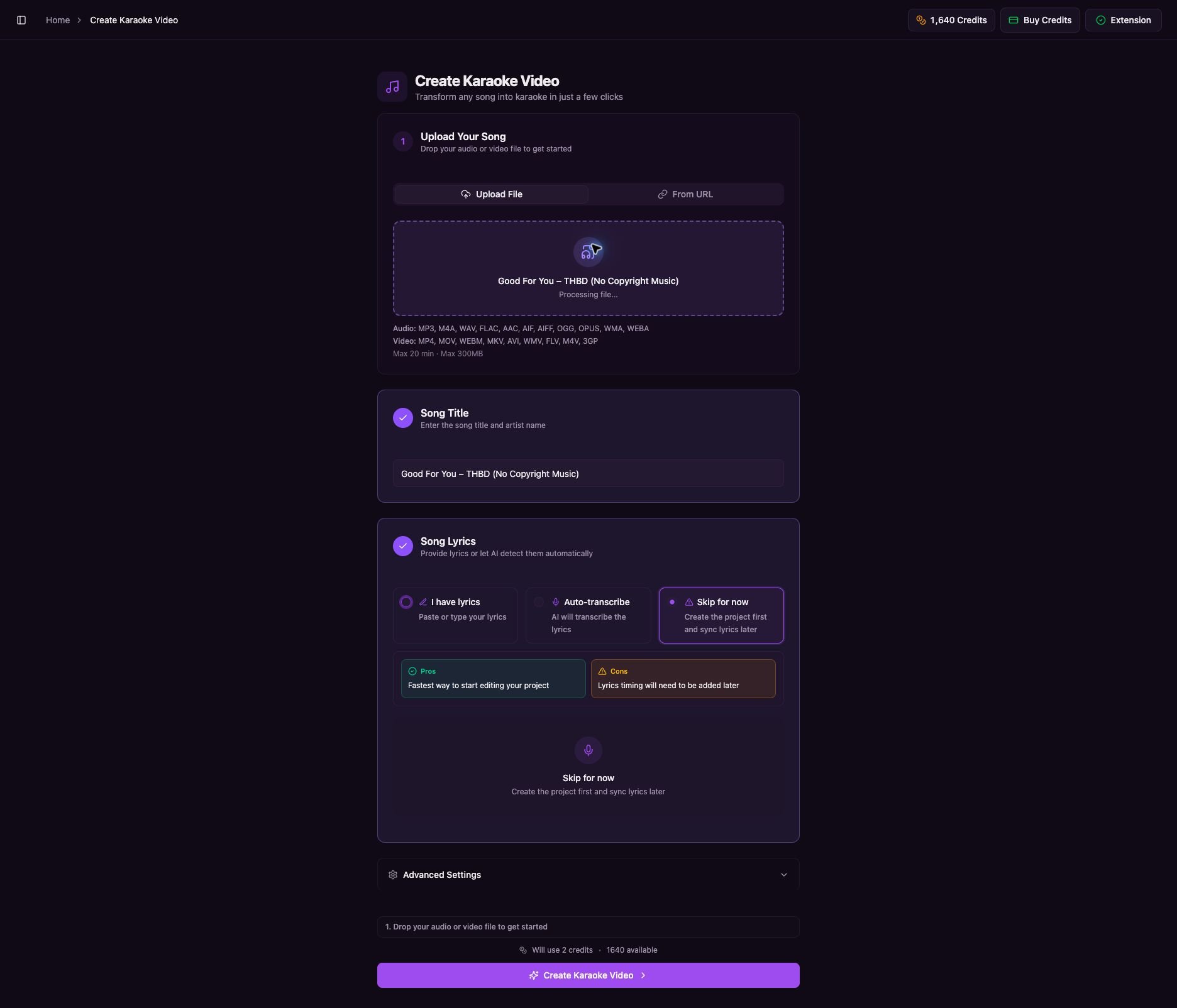 ## 8. Wait for the Project
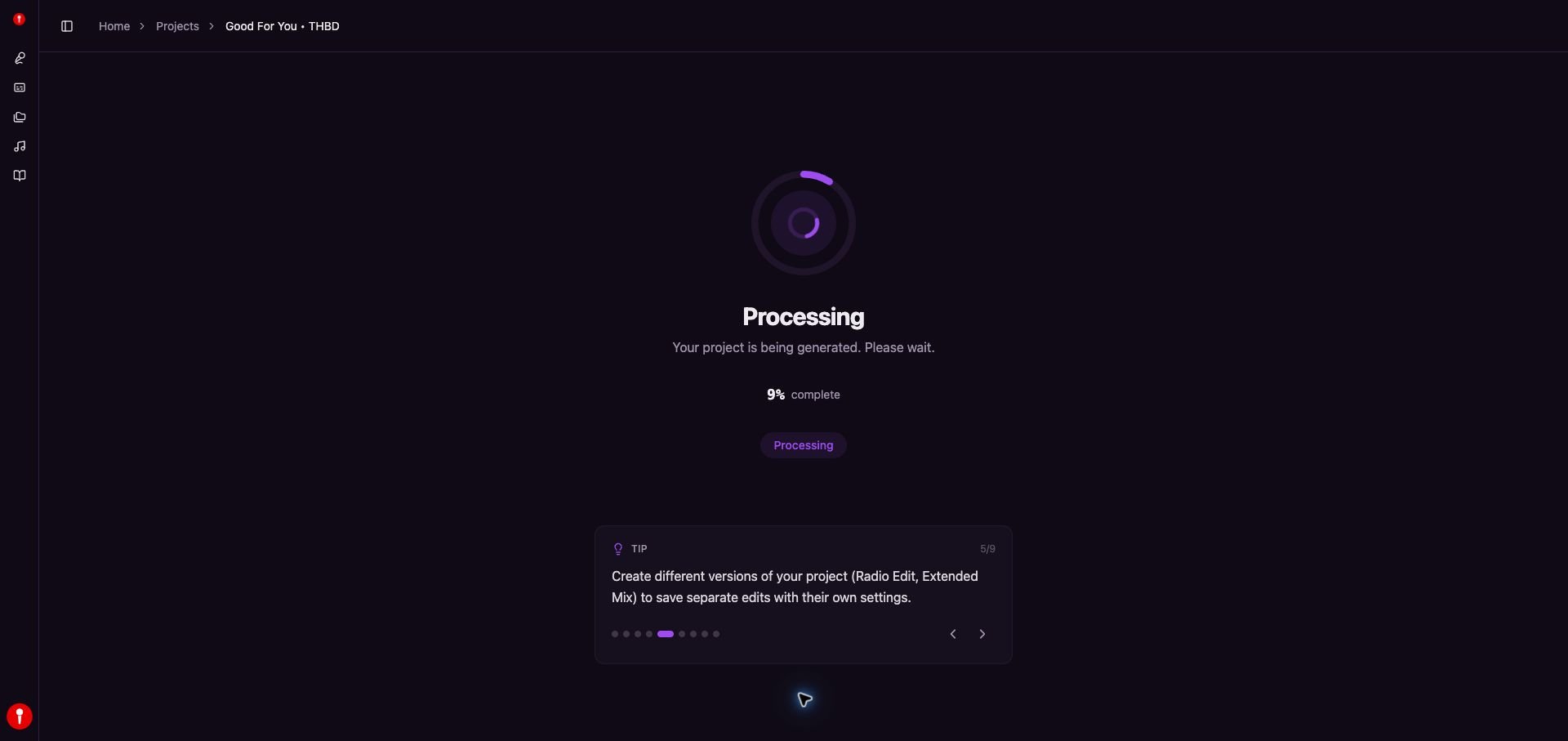
Youka opens a **Processing** page automatically. Keep this page open while the percentage increases.
## 8. Wait for the Project
Youka opens a **Processing** page automatically. Keep this page open while the percentage increases.
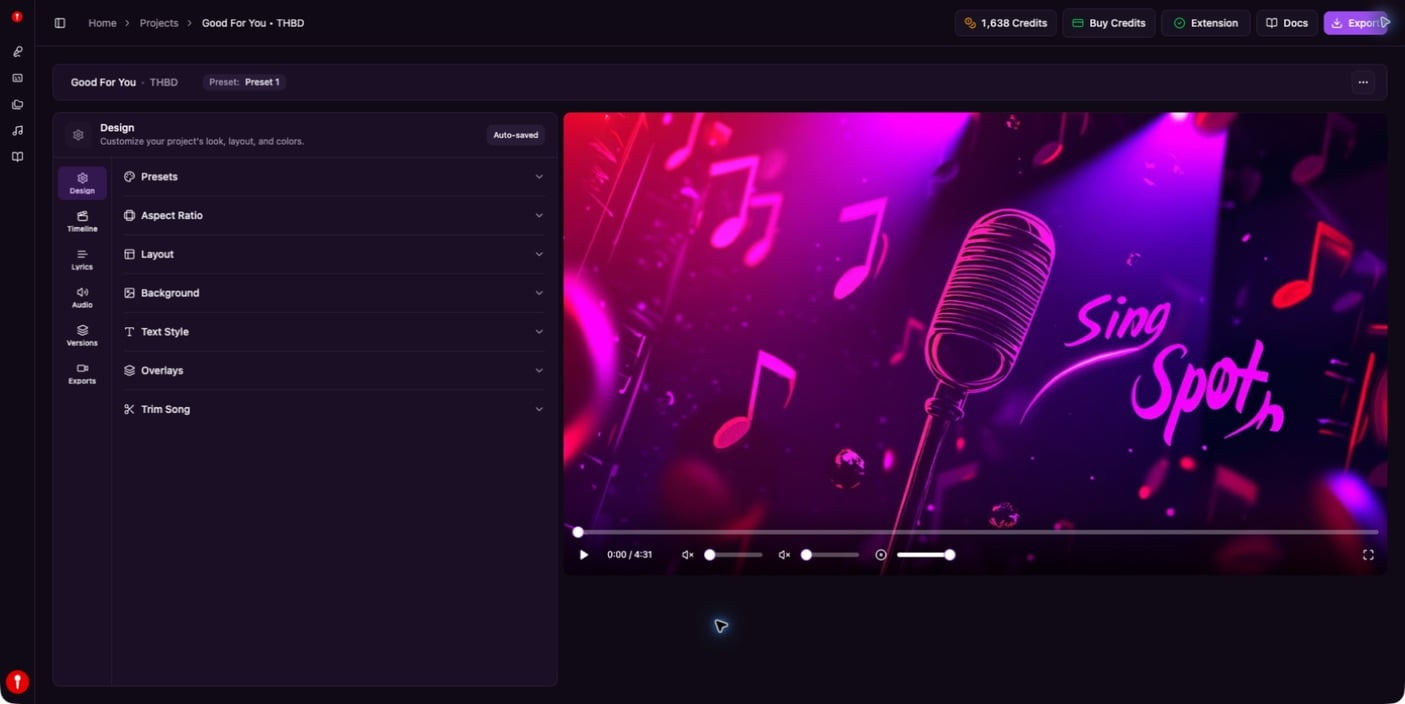
 The karaoke is ready when the player opens and the processing message is gone.
 ## If a URL Does Not Download
* Confirm the URL opens publicly without signing in.
* Try an official audio upload or clean music video.
* Private, age-restricted, removed, or region-blocked media may not work.
* If the source blocks downloading, download a permitted MP3 or MP4 yourself and use [Create Your First Karaoke](/en/web/create-karaoke).
## What to Do Next
* [Customize the project](/en/web/using-studio)
* [Correct lyrics timing](/en/web/manual-sync)
* [Export the karaoke video](/en/web/export-video)
## If a URL Does Not Download
* Confirm the URL opens publicly without signing in.
* Try an official audio upload or clean music video.
* Private, age-restricted, removed, or region-blocked media may not work.
* If the source blocks downloading, download a permitted MP3 or MP4 yourself and use [Create Your First Karaoke](/en/web/create-karaoke).
## What to Do Next
* [Customize the project](/en/web/using-studio)
* [Correct lyrics timing](/en/web/manual-sync)
* [Export the karaoke video](/en/web/export-video)