> ## Documentation Index
> Fetch the complete documentation index at: https://docs.youka.io/llms.txt
> Use this file to discover all available pages before exploring further.
# Get started with Youka Live
> Install Youka Live, activate the 30-minute trial, and control your first live mix
You need a Mac running macOS 15.6 or later and an internet connection for the first activation. Audio separation runs locally during normal use.
## Install and activate
Open the [Youka Live download page](https://www.youka.io/live/download) and
download the Universal DMG.
Open the DMG, drag **Youka Live** into **Applications**, eject the disk
image, and open Youka Live.
Youka Live lives at the top of your screen instead of opening a normal app
window. Click the waveform icon whenever you want to open the mixer.
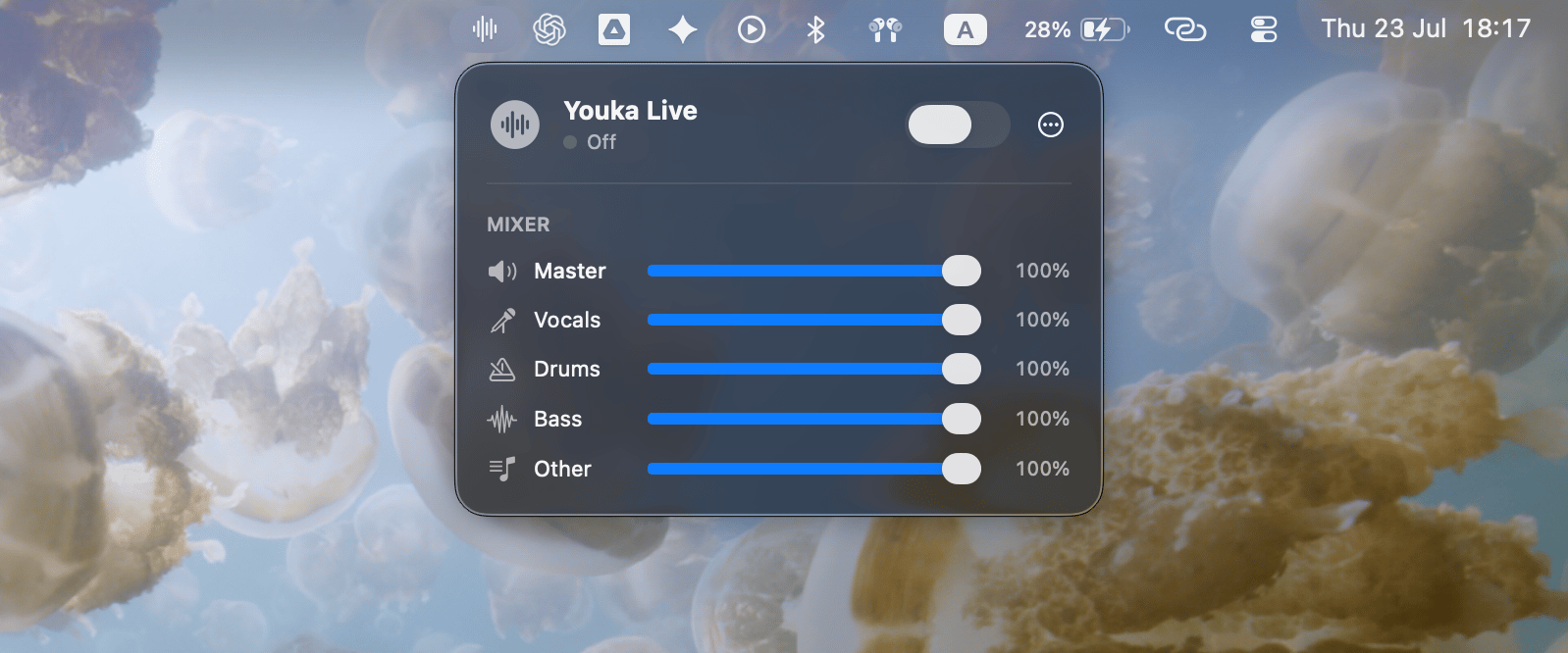 If the icon does not appear, open Youka Live again from **Applications**.
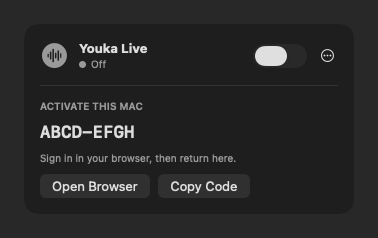
Open the Youka Live menu and select **Start Free Trial**. Your browser opens
with an eight-character activation code. Sign in to Youka and select
**Approve this Mac** only if the code matches the one in the app.
Approval gives your Youka account 30 cumulative minutes of Live separation.
The allowance has no calendar expiration and no payment card is required.
Time decreases only after the app reaches **Live**; setup, warm-up, recovery,
errors, and time with Live switched off do not count.
If the icon does not appear, open Youka Live again from **Applications**.
Open the Youka Live menu and select **Start Free Trial**. Your browser opens
with an eight-character activation code. Sign in to Youka and select
**Approve this Mac** only if the code matches the one in the app.
Approval gives your Youka account 30 cumulative minutes of Live separation.
The allowance has no calendar expiration and no payment card is required.
Time decreases only after the app reaches **Live**; setup, warm-up, recovery,
errors, and time with Live switched off do not count.
 When macOS asks, allow **Screen & System Audio Recording** for Youka Live.
If the prompt does not appear, open **System Settings → Privacy & Security →
Screen & System Audio Recording** and enable Youka Live.
## Make your first mix
Play music or video in any Mac app, such as a browser or media player.
Enable **Live** from the Youka Live menu. Youka Live automatically checks
that separation can run reliably on this Mac, then prepares the playback
buffer. Allow a few seconds for this to finish.
Move the **Vocals**, **Drums**, **Bass**, and **Other** sliders, or adjust
**Master** to change the full output level. Select any speaker control,
including **Master**, to mute it. Unmuting restores its previous audible
level.
To keep the mixer compact, open **… → Show in Mixer** and turn off any
controls you do not want to see. Hidden controls keep their volume and mute
settings. Select **Show All** to restore every control.
Begin at a moderate Mac volume. Choose speakers or headphones in macOS Sound
settings. Youka Live follows the current system output and later changes
automatically.
## Stop processing
Turn off **Live** before quitting the app or changing audio hardware. Youka Live opens with Live turned off during a normal launch.
Next, learn how [licenses, devices, and model upgrades](/en/live/license-and-upgrades) work.
When macOS asks, allow **Screen & System Audio Recording** for Youka Live.
If the prompt does not appear, open **System Settings → Privacy & Security →
Screen & System Audio Recording** and enable Youka Live.
## Make your first mix
Play music or video in any Mac app, such as a browser or media player.
Enable **Live** from the Youka Live menu. Youka Live automatically checks
that separation can run reliably on this Mac, then prepares the playback
buffer. Allow a few seconds for this to finish.
Move the **Vocals**, **Drums**, **Bass**, and **Other** sliders, or adjust
**Master** to change the full output level. Select any speaker control,
including **Master**, to mute it. Unmuting restores its previous audible
level.
To keep the mixer compact, open **… → Show in Mixer** and turn off any
controls you do not want to see. Hidden controls keep their volume and mute
settings. Select **Show All** to restore every control.
Begin at a moderate Mac volume. Choose speakers or headphones in macOS Sound
settings. Youka Live follows the current system output and later changes
automatically.
## Stop processing
Turn off **Live** before quitting the app or changing audio hardware. Youka Live opens with Live turned off during a normal launch.
Next, learn how [licenses, devices, and model upgrades](/en/live/license-and-upgrades) work.