> ## Documentation Index
> Fetch the complete documentation index at: https://docs.youka.io/llms.txt
> Use this file to discover all available pages before exploring further.
# Move Legacy Projects to Youka Online
> Make Youka Desktop Legacy projects available in Youka Online and the new Youka Desktop
You can make several Youka Desktop Legacy projects available in Youka Online at
once. After that, sign in to the new Youka Desktop with the same account to open
the cloud-backed projects there.
The migration is additive. It does not delete or change your Legacy project
files. Projects already available Online are skipped.
## Before you start
* Update or restart Youka Desktop Legacy so the migration setting is available.
* Sign in with the same Youka account you will use in Youka Online and the new
Youka Desktop.
* Keep the computer online and leave Legacy open until the job finishes.
* Keep a backup of your Legacy project folder and finished exports until you
have checked the migrated projects.
This creates editable, cloud-backed projects. It is not a complete backup of
every local source file, app setting, or rendered export.
## Move all eligible projects
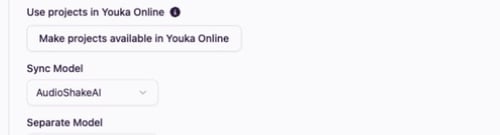
In **Youka Desktop Legacy**, open **Settings**, then expand **General**.
Under **Use projects in Youka Online**, choose **Make projects available in
Youka Online**.
 Legacy shows how many projects it will check. It also confirms that audio
and lyrics are preserved, an available selected background is uploaded, and
local project files are not changed or removed. Choose **Continue**.
Legacy opens the Projects screen and reports **Made available**,
**Skipped**, and **Failed** counts while it works.
When the job finishes, choose **Open projects in Youka Online**. Install or
open the [new Youka Desktop](/en/desktop) and sign in with the same account
to use those projects there too.
## What moves to the cloud
For each eligible local-only project, Youka uploads the project audio, lyrics,
word timing, selected stems, and an available selected background and thumbnail.
Your original Legacy files remain on the computer.
If a project is already available Online, Legacy skips it. If the Online
project exists but its visual is missing, Legacy tries to attach the selected
background when that file is still readable.
## Warnings and failures
### Background file not found
The project can still move with its audio, lyrics, timing, and stems. Open the
project in Youka Online or the new Youka Desktop and choose a new background.
### Online storage is full
The bulk job stops before starting more projects. Free Online storage or
upgrade, then run the migration again. Already completed and skipped projects
will not be duplicated.
### A project fails
Legacy shows the project title and reason in the job. Fix the reported local
file problem and retry; projects that already succeeded are skipped.
## Move one project instead
For a single Legacy project, open its **Cloud** menu and choose **Open project in
Youka Online**. Use the Settings workflow above when you want to move several
projects together.
Legacy shows how many projects it will check. It also confirms that audio
and lyrics are preserved, an available selected background is uploaded, and
local project files are not changed or removed. Choose **Continue**.
Legacy opens the Projects screen and reports **Made available**,
**Skipped**, and **Failed** counts while it works.
When the job finishes, choose **Open projects in Youka Online**. Install or
open the [new Youka Desktop](/en/desktop) and sign in with the same account
to use those projects there too.
## What moves to the cloud
For each eligible local-only project, Youka uploads the project audio, lyrics,
word timing, selected stems, and an available selected background and thumbnail.
Your original Legacy files remain on the computer.
If a project is already available Online, Legacy skips it. If the Online
project exists but its visual is missing, Legacy tries to attach the selected
background when that file is still readable.
## Warnings and failures
### Background file not found
The project can still move with its audio, lyrics, timing, and stems. Open the
project in Youka Online or the new Youka Desktop and choose a new background.
### Online storage is full
The bulk job stops before starting more projects. Free Online storage or
upgrade, then run the migration again. Already completed and skipped projects
will not be duplicated.
### A project fails
Legacy shows the project title and reason in the job. Fix the reported local
file problem and retry; projects that already succeeded are skipped.
## Move one project instead
For a single Legacy project, open its **Cloud** menu and choose **Open project in
Youka Online**. Use the Settings workflow above when you want to move several
projects together.